






VALORANT is designed to run on a wide range of PCs, but “the game launches” and “the game feels consistently smooth” are not the same thing. Competitive play exposes frame drops, unstable frame times, network spikes, background tasks, and bad display settings much more clearly than a slower single-player game.

This guide focuses on practical changes that can improve VALORANT FPS, ping, frame consistency, and input responsiveness without recommending risky registry tweaks, fake “gaming optimizer” software, or settings that break Windows security.
Riot’s official VALORANT system requirements show how lightweight the game can be. Riot lists hardware targets for 30 FPS, 60 FPS, and 144+ FPS. Even so, actual performance depends on your CPU, GPU, RAM, drivers, cooling, background software, and network.
First understand the difference between FPS and ping
Players often mix these two problems together.
FPS is how many frames your PC renders each second. Low or unstable FPS is mainly a computer-performance problem.
Ping is network delay between your PC and the game server. High or unstable ping is mainly a connection or routing problem.
You can have 300 FPS and still experience 90 ms ping. You can also have 15 ms ping while your PC stutters at 70 FPS. Fix the correct problem first.
Quick symptom check
- If the image feels choppy while network values look stable, investigate FPS.
- If players teleport or actions register late, investigate network quality.
- If the game freezes briefly, investigate frame-time spikes, storage, drivers, or background processes.
- If mouse input feels delayed only when FPS drops, the performance issue may be causing the input problem.
1. Set a sensible FPS target
Unlimited FPS is not automatically best. A system that jumps between 180 and 320 FPS may feel less consistent than one holding a stable cap near the performance your PC can maintain.
Start by checking your monitor refresh rate. A 60Hz monitor, 144Hz monitor, and 240Hz monitor have different practical needs.
Example targets
- 60Hz display: aim for a stable frame rate well above 60 if your hardware allows it.
- 144Hz display: target a stable 144+ FPS, preferably with some headroom.
- 240Hz display: a consistent 240+ FPS is useful if your CPU can deliver it.
The exact cap depends on your hardware and variable-refresh setup. The goal is stable frame delivery, not the largest number in the corner.
2. Use fullscreen mode for competitive play
Start with exclusive fullscreen if it works correctly on your system. Fullscreen can reduce unnecessary desktop composition behavior and make display handling more predictable.
If you often alt-tab or use multiple monitors, borderless mode may be more convenient, but test the difference yourself. Windows and driver behavior changes over time, so old advice from years ago may not match your current system.
3. Lower the settings that actually affect performance
VALORANT is often CPU-limited on mid-range and high-end systems. Riot has previously explained that lower-spec PCs can be GPU-bound, while stronger systems may become CPU-bound. This means lowering every graphics option may not increase FPS if the CPU is already the limit.
Change settings in groups and measure the result.
Recommended competitive starting point
- Material Quality: Low or Medium.
- Texture Quality: Low or Medium based on available VRAM.
- Detail Quality: Low.
- UI Quality: Low or Medium.
- Vignette: Off.
- VSync: Off for lowest latency unless your setup specifically needs it.
- Anti-Aliasing: choose a low-cost option that still looks clear to you.
- Anisotropic Filtering: modest settings usually have small cost on modern GPUs.
- Improve Clarity: test on and off.
- Bloom: Off.
- Distortion: Off.
- Cast Shadows: Off if you need more performance.
Do not copy a professional player’s settings blindly. Their PC, monitor, mouse, resolution, and visual preferences may be very different from yours.
4. Choose the right resolution
Native monitor resolution gives the clearest image, but lower resolutions can reduce GPU load. If your GPU is the bottleneck, reducing resolution may increase FPS significantly.
If your CPU is the bottleneck, lowering resolution may barely help because the GPU was already waiting for the CPU.
How to test whether you are GPU-limited
- Record FPS in a repeatable practice area.
- Lower resolution substantially.
- Test again in the same situation.
- If FPS rises a lot, the GPU was a major limit.
- If FPS barely changes, the CPU or another component may be limiting performance.
5. Keep GPU drivers current, but do not update blindly before a match
NVIDIA, AMD, and Intel regularly release graphics drivers with game fixes and performance changes. Keeping drivers reasonably current is useful, especially if you experience crashes or visual problems.
However, do not install a new driver five minutes before a tournament or ranked session. Updates can reset settings, require restarts, or introduce new issues.
Better driver routine
Update on a normal day, restart the PC, test VALORANT in practice mode, then play a few unranked matches before deciding the driver is stable for your setup.
6. Close background software that causes real load
You do not need to close every Windows process. Focus on applications that use CPU, GPU, storage, or network resources.
- Browser tabs playing video.
- Game launchers downloading updates.
- Cloud backup tools actively syncing.
- Video editing or rendering software.
- RGB utilities that are known to cause high CPU use.
- Screen recorders using expensive settings.
- Large file transfers.
Open Task Manager and look at actual usage. Do not terminate unknown Windows services based on a random optimization video.
7. Check thermals before buying new hardware
A powerful CPU can perform poorly if it overheats and reduces clock speed. The same applies to the GPU.
If FPS starts high and falls after 15 to 30 minutes, heat may be part of the problem.
Basic cooling checks
- Make sure air vents are not blocked.
- Clean heavy dust from filters and fans.
- Check whether laptop performance mode is enabled while plugged in.
- Use the laptop on a hard surface, not a bed or blanket.
- Check temperatures with a reputable monitoring tool.
Do not immediately replace thermal paste unless you understand the hardware and have evidence that temperatures are abnormal.
8. Enable your monitor’s correct refresh rate in Windows
Buying a 144Hz or 240Hz monitor does not guarantee Windows is using that refresh rate.
Open Windows display settings, select the correct monitor, then check the advanced display section. Make sure the desired refresh rate is selected.
This is one of the easiest mistakes to fix. A player can render 250 FPS but still see only a 60Hz output if the display is configured incorrectly.
9. Use a wired connection when possible
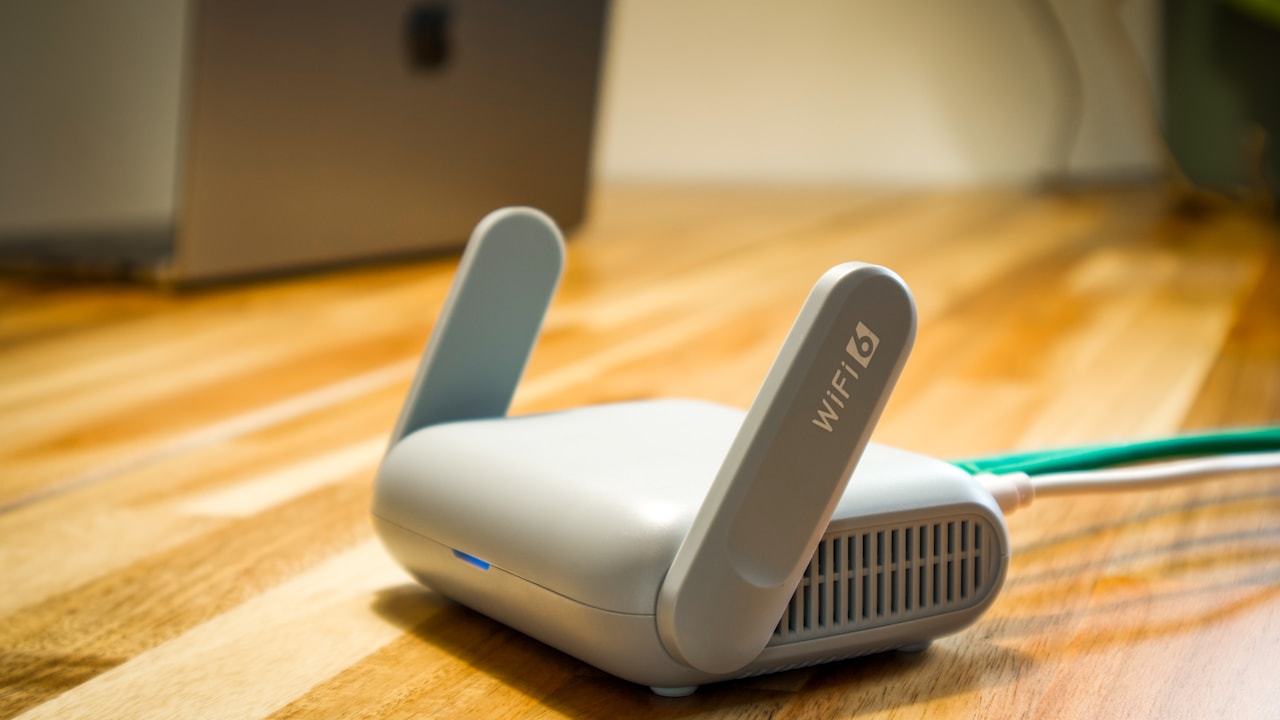
Ethernet usually provides more stable latency than Wi-Fi because it avoids wireless interference and signal changes.
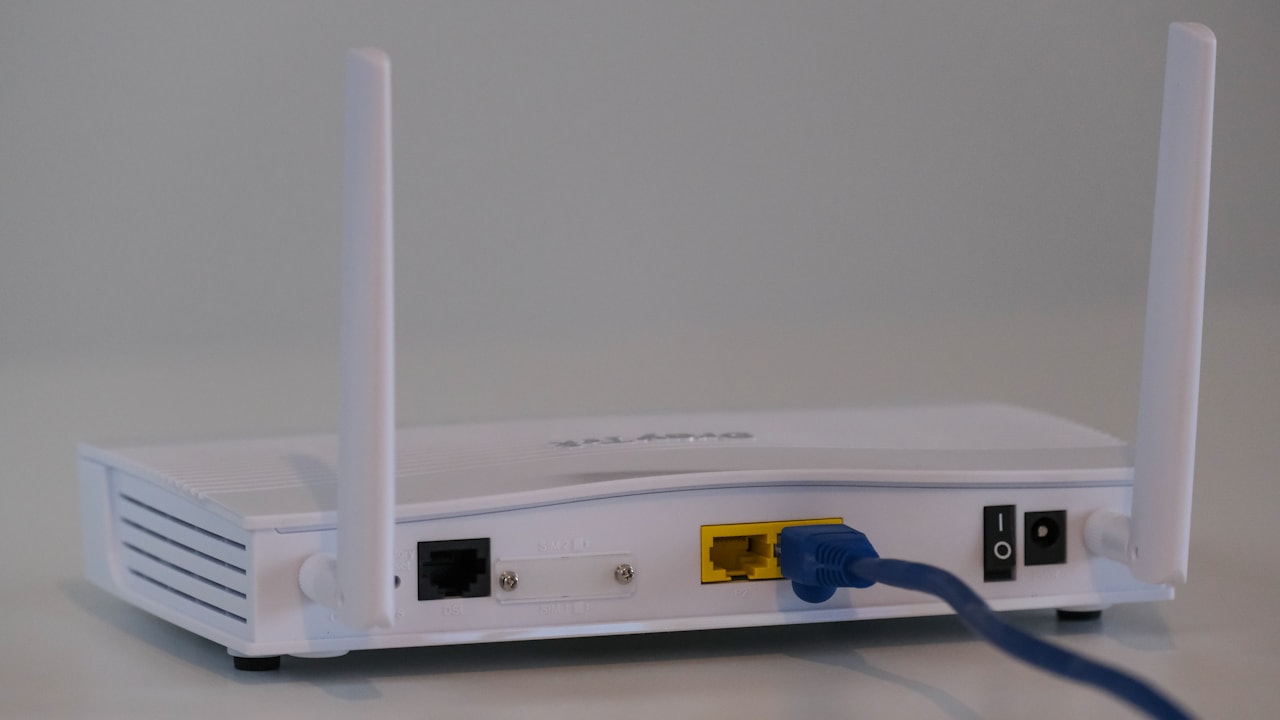
Ping is not only about speed. A 500 Mbps Wi-Fi connection can still have worse gaming latency than a stable 100 Mbps Ethernet connection.
If Ethernet is not possible
- Use 5GHz or 6GHz Wi-Fi when available.
- Stay close to the router.
- Avoid thick walls and crowded wireless channels.
- Do not place the router inside a closed cabinet.
- Pause large downloads on other devices during ranked play.
10. Choose the correct VALORANT server
If multiple server locations are available, compare latency before queueing. The lowest number is usually best, but stability also matters.
A server showing 25 ms with frequent spikes may feel worse than one holding a steady 32 ms.
Do not use a VPN just to chase lower ping
A VPN can sometimes improve a poor internet route, but it often adds another network hop and increases delay. Test objectively rather than assuming it helps.
If your internet provider has a routing problem, a VPN may be a temporary workaround, but the better long-term solution is fixing the route or provider issue.
11. Measure packet loss, not only ping
Stable low ping can still feel bad if packets are being lost. Packet loss can cause delayed movement, missing updates, rubber-banding, or inconsistent hit registration.
Use VALORANT’s network statistics while playing. If loss appears, test your connection outside the game as well.
Common causes
- Weak Wi-Fi.
- Overloaded home network.
- Faulty Ethernet cable.
- Router problems.
- ISP congestion.
- Bad routing to a game server.
12. Avoid background downloads on every device
Your own PC is not the only source of network congestion. A television streaming 4K video, another PC downloading a 100GB game, or a phone uploading photos can increase latency.
If ping becomes bad only in the evening, check what else is happening on the network.
13. Use Windows power settings appropriately
Desktop PCs usually handle performance automatically, but laptops can aggressively reduce power use on battery.
For serious competitive play, connect the laptop to its proper charger and select a performance-focused power mode if the manufacturer provides one.
Do not expect full gaming performance from a laptop running on battery. Many models intentionally limit CPU and GPU power when unplugged.
14. Check RAM configuration
VALORANT itself does not need huge amounts of memory, but the rest of your system does. Browsers, Discord, recording tools, and Windows all use RAM.
Dual-channel memory can also matter for CPU performance, especially on systems using integrated graphics or processors that benefit strongly from memory bandwidth.
When RAM may be part of the problem
- The system has very little total memory.
- Task Manager shows memory nearly full during play.
- The PC uses one memory stick where dual-channel is supported.
- The system starts using the page file heavily during matches.
15. Install the game on healthy storage
An SSD will not magically double VALORANT FPS, but healthy fast storage can reduce loading delays and help avoid stalls caused by a struggling drive.
Keep free space available. A nearly full system drive can cause wider Windows performance problems.
16. Fix stutter separately from average FPS
A PC can average 200 FPS and still feel bad if it drops to 70 FPS for a fraction of a second. Frame-time consistency is often more important than the average.
If you have stutter, check these first
- Background CPU spikes.
- Thermal throttling.
- Driver problems.
- Overlays and recording software.
- RAM pressure.
- Windows updates running in the background.
- Storage health.
- Recently installed utilities.
Change one variable at a time. If you make ten tweaks and the problem disappears, you will not know which change fixed it.
17. Be careful with overlays
Discord, graphics drivers, Xbox Game Bar, recording tools, hardware monitoring apps, and launchers can add overlays. Most modern overlays work fine, but conflicts can occur.
If you have unexplained stutter, disable nonessential overlays temporarily and retest.
18. Recording and streaming can reduce FPS
If you stream or record gameplay, the encoder uses system resources. Modern GPUs have dedicated video encoders, but recording can still affect frame times depending on resolution, bitrate, encoder choice, and software.
Competitive recording tip
Record at a setting that your system can hold during the worst part of a match, not only in the practice range. A stable 1080p recording is more useful than a 1440p recording that causes sudden FPS drops in gunfights.
19. Reboot before long competitive sessions
A restart is not a magical optimization, but it clears temporary software state, finishes pending updates, and closes background programs you may have forgotten.
If your PC has been awake for several days and performance feels strange, restart before changing advanced settings.
20. Do not disable Windows security to gain FPS
Some optimization guides tell players to disable security features, antivirus protection, Secure Boot, TPM, or other system protections. That is poor advice.
Riot’s official specifications note that Windows 11 requires TPM 2.0 and UEFI Secure Boot for VALORANT. Do not weaken the system to chase tiny performance gains.
Also avoid unknown “FPS booster” programs that demand administrator access. A competitive gaming PC still needs to be secure.
Best troubleshooting order for low FPS
- Restart the PC.
- Confirm the monitor refresh rate.
- Check whether the laptop is plugged in.
- Close heavy background tasks.
- Lower VALORANT graphics settings.
- Test a lower resolution.
- Check CPU and GPU temperatures.
- Update graphics drivers if needed.
- Check RAM usage.
- Test without optional overlays or recording.
Best troubleshooting order for high ping
- Check the selected VALORANT server.
- Restart the router if the connection is behaving abnormally.
- Use Ethernet if possible.
- Pause downloads and cloud backups.
- Check other devices on the network.
- Test for packet loss.
- Compare latency at another time of day.
- Contact the ISP if routing or congestion remains poor.
Example setup for a 144Hz player
Imagine a player has a Ryzen 5-class CPU, mid-range GPU, 16GB RAM, a 144Hz 1080p monitor, and a stable broadband connection.
A sensible setup would be 1080p fullscreen, competitive low-to-medium settings, VSync off, a frame cap the system can hold comfortably above 144 FPS, Ethernet, background downloads paused, and the monitor confirmed at 144Hz in Windows.
If FPS still drops, the player should measure CPU and GPU use rather than randomly lowering everything. If ping spikes, graphics changes will not help.
Example setup for a low-end laptop
A low-end laptop may need 1080p low or a lower resolution, a realistic FPS cap, minimal background apps, and the charger connected. The player should prioritize stable 60 to 100 FPS over trying to copy a 300-FPS esports setup.
If the laptop overheats, cleaning airflow and reducing unnecessary background load may help more than another config file.
Common VALORANT performance questions
Does lowering graphics always increase FPS?
No. If your CPU is the bottleneck, lowering GPU-heavy settings may produce only a small improvement.
Is higher FPS always better?
Higher FPS generally reduces frame time, but stable performance matters. A wildly unstable frame rate can feel worse than a sensible cap.
Will faster internet lower ping?
Not necessarily. Ping depends more on distance, routing, congestion, and connection quality than raw download speed.
Should I use a gaming VPN?
Only if testing shows it improves a bad route. It can also make latency worse.
Should I disable Secure Boot or TPM?
No. Riot requires TPM 2.0 and UEFI Secure Boot on Windows 11.
Is Wi-Fi unusable for VALORANT?
No, but strong modern Wi-Fi is still less predictable than a good Ethernet connection. Use wired networking when practical.
Final competitive checklist
- Correct monitor refresh rate selected.
- Fullscreen mode tested.
- Stable FPS target chosen.
- Background downloads stopped.
- Temperatures normal.
- Drivers stable.
- Correct server selected.
- Packet loss checked.
- Ethernet used when available.
- No risky “optimizer” software installed.
Conclusion
The best VALORANT optimization is not a secret config. It is a clean troubleshooting process. Separate FPS problems from network problems, measure what changes, and fix the largest bottleneck first.
For FPS, prioritize stable frame delivery, correct display settings, sensible graphics options, healthy temperatures, and low background load. For ping, prioritize the correct server, Ethernet or strong Wi-Fi, low network congestion, and stable routing.
Most players do not need extreme Windows tweaks. VALORANT is already built to run on modest hardware. A well-maintained PC, a stable connection, and settings matched to your monitor usually produce a better competitive experience than aggressive “boost” guides that disable useful system features.